

Admin Team Management and role assignment Workflow
1. PWSA Admin Teams Workflow
1.1 Purpose of this document
The Purpose of this document is to record the expected workflow and business case rules around how to edit the roles associated with each team (Team Manager, Coach and Assistant Coaches)
2. Logged in as System Administrator
Assumptions: User is logged in as the System Administrator. Its important to know that if logged in as the Association Contact or Registrar this workflow is correct. This bug only happens when logged in as admin.
2.1 Members Search
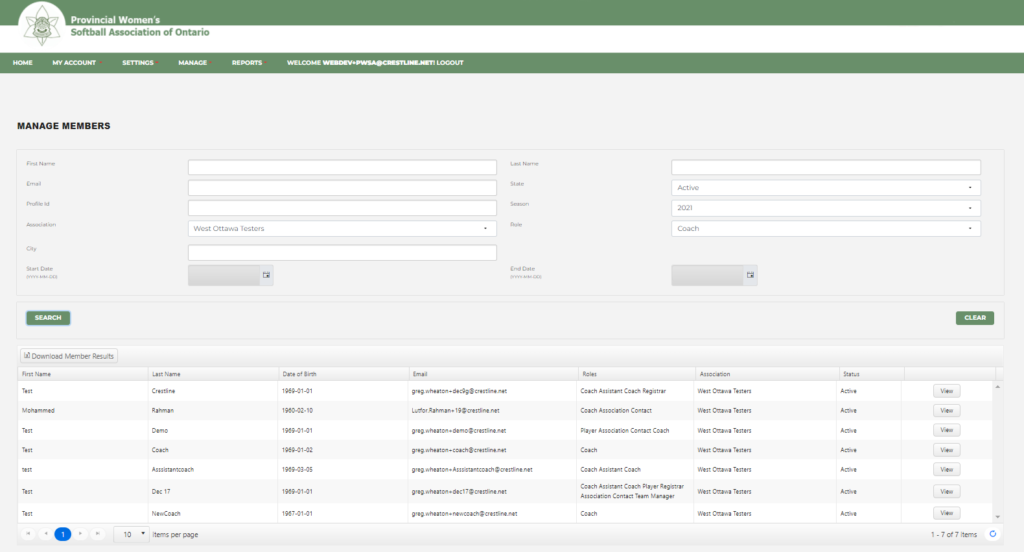
When Searching members and looking for individuals who belong to a specific Association and have the role of Coach and or Assistant coach. The below example is using the “West Ottawa Testers” association and looking for users with the Coach Role.
The results above demonstrate 7 members currently with the Coach Role.
2.2 Viewing a team
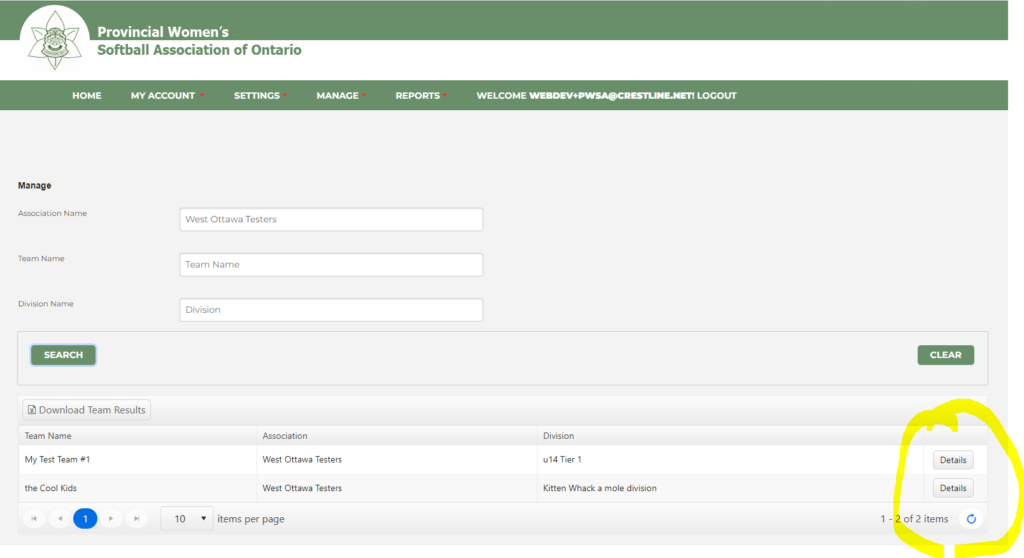
Menu – Manage / Teams view. Select an Association (West Ottawa Testers) and search the results should only show teams that are connected to that Association. Select one of the teams and click on Details to view the team information page.
2.3 Editing the Team
On the view team page click on the Edit Team Button.
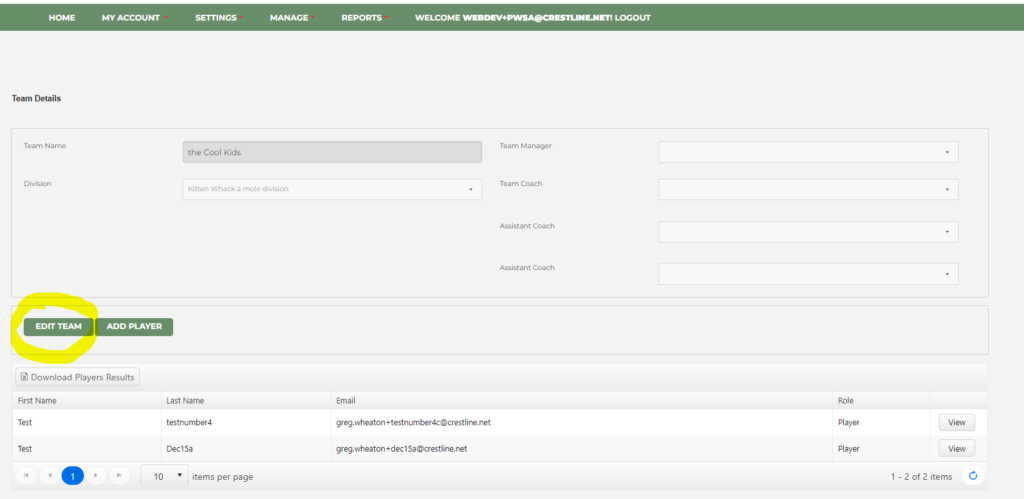
On the Edit team page under the drop down for Team Coach, there should be a list of all the available members who have the Coaching role for that Association.
The Administrator should be able to select the correct user for each of these fields and then hit Update to Save all the Changes.